Making 2D games
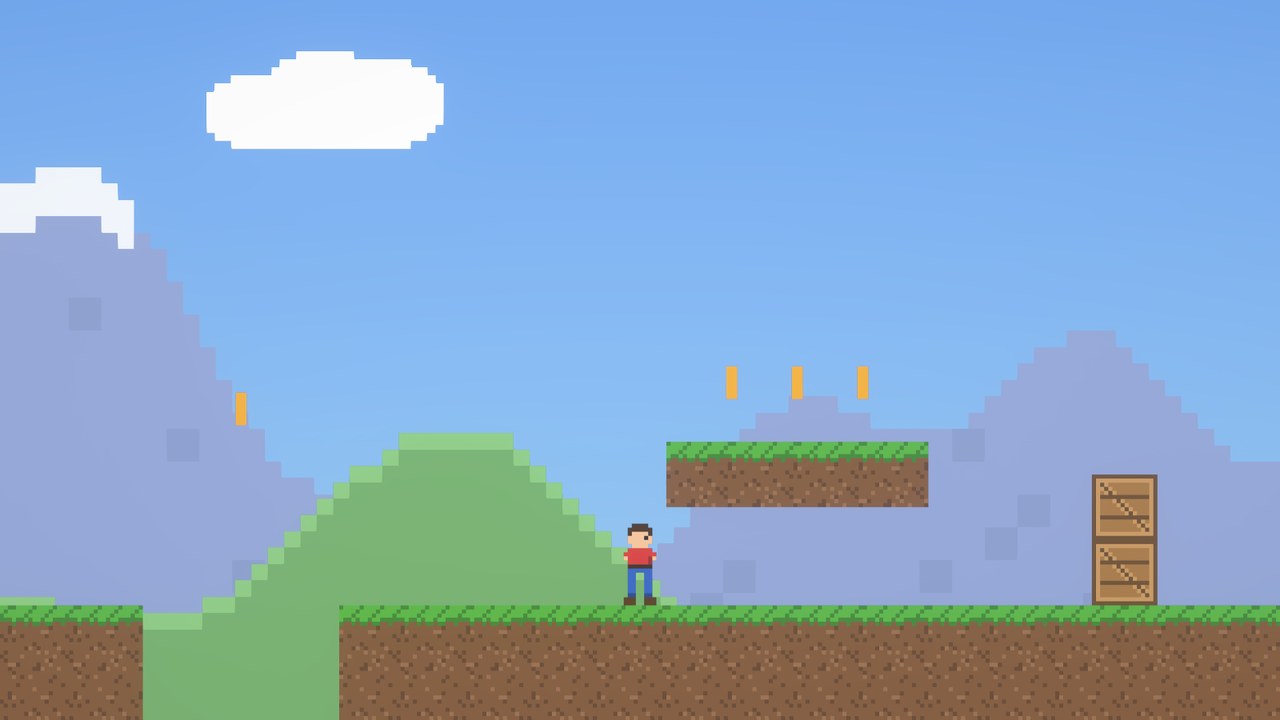
A 2D game in DarkRoast is a level seen straight from the front by an orthographic camera. You lay it out in Blender’s Front view (Numpad 1), draw it with sprites, and keep things in the picture’s plane with 2D physics.
1. Set up the level
- Camera: select the scene camera, and in its Object Data properties set Type to Orthographic. Rotate it to look along +Y (rotation X 90°) and set Orthographic Scale to how much the screen should show. The game keeps the camera’s height; a wider window shows more to the sides.
- Player: in DarkRoast → World → Camera & Colour, set Player to None (Scripts). There’s no first-person walker; your own character script moves the hero and the camera, and the game starts from the scene camera’s view.
- Colours: in Blender’s Render Properties → Color Management, set View Transform to Standard. Your art then shows its own colours (white stays white) instead of going through the filmic curve meant for 3D scenes. Turning Vignette down in the World panel helps too.
2. Sprites
A sprite is a flat picture. Select a mesh or an Empty and tick Sprite (2D) under Object Components:
- On an image plane (Add → Image → Mesh Plane, or Import Images as Planes): the sprite takes the plane’s image, size and facing. Scale the plane to resize it.
- On an Empty: pick the Image; the sprite is the image’s size divided by Pixels per Metre, around the Pivot (Centre, or Bottom for characters standing on their feet).
| Setting | What it does |
|---|---|
| Tint | Multiplies the picture; its alpha fades it. |
| Sorting Layer, Order in Layer | What covers what. Higher layers are drawn over lower ones whatever their depth; inside a layer, higher orders, then nearer sprites, win. E.g. sky −10, mountains −6, level 0, pickups 1, hero 2. |
| Pixel Art | Sharp square pixels however big the sprite is on screen. |
| Hard Edges | Each pixel is solid or invisible (cutout). Best for pixel art, and sharp under TAA while moving. Off: soft, see-through edges. |
| Lit | Shaded by the sun, lamps and ambient light like 3D surfaces. Off: shows the picture’s own colours. |
| Brightness | Unlit sprites: above 1 they glow through bloom (coins, lasers). |
| Flip X / Y | Mirrors the picture. |
Images can be files or packed into the .blend; export writes them to textures/ next to the level.
3. Sprite sheets and animation
Put the frames of an animation in one image, in equal cells. Set Columns and Rows; frames count from 1 at the top left, along each row. First Frame, Frames and FPS pick the animation that plays when the level starts.
From a script, switch animations with play_sprite:
self:play_sprite{first = 3, count = 4, fps = 12}   -- frames 3-6: run
self:play_sprite{first = 7, count = 1}             -- frame 7: jump
self.sprite_frame = 8                              -- show frame 8 and stop
self.sprite_flip_x = true                          -- face left
4. 2D physics
Give moving things a Dynamic body and set 2D:
| X/Z, No Turning | Characters: stays in the plane, never tips over. |
| X/Z Plane | Crates, barrels, rocks: stays in the plane and tumbles, turning only about Y. |
Scripts can switch it with self.lock_2d = "plane", "fixed" or false. A sprite with a body collides as a box around its picture, 1 m deep. For floors made of many tiles, give the tiles No Collision and put one invisible Static box (untick Visible In Game) under each platform: fewer bodies, and nothing for the hero to snag on between tiles.
5. The hero script
Attach this to the hero (a Dynamic sprite with 2D: X/Z, No Turning, Pivot Bottom, and a sheet with idle frames 1–2, run 3–6 and jump 7):
local SPEED, JUMP = 6.5, 9.0
local anim

local function play(self, name, first, count, fps)
  if anim ~= name then
    anim = name
    self:play_sprite{first = first, count = count, fps = fps}
  end
end

function on_update(self, dt)
  local x = input.move()                       -- A/D or the left stick
  if input.down("LEFT") then x = -1 elseif input.down("RIGHT") then x = 1 end
  local v, p = self.velocity, self.position
  -- standing on something? (a short ray down from just below the feet)
  local ground = raycast(vec3(p.x, p.y, p.z - 0.02), vec3(0, 0, -1), 0.12) ~= nil
  if ground and input.pressed("jump") then v.z = JUMP end
  v.x = x * SPEED
  self.velocity = v
  if x ~= 0 then self.sprite_flip_x = x < 0 end
  if not ground then play(self, "jump", 7, 1)
  elseif x ~= 0 then play(self, "run", 3, 4, 12)
  else play(self, "idle", 1, 2, 2) end
  camera.set(vec3(p.x, -20, 3.5), vec3(p.x, 0, 3.5)) -- follow along X
end
Coins are Trigger sprites. The hero isn’t the built-in player, so check its name instead of other.is_player:
function on_trigger_enter(self, other)
  if other.name == "Hero" then
    game.coins = (game.coins or 0) + 1
    ui.set("coins", "Coins " .. game.coins)
    self:destroy()
  end
end
6. Camera & parallax
Ease the camera after the hero instead of snapping, and stop it at the level’s ends with camera.view_size(), which tells you how many metres the view spans:
local LEFT, RIGHT = -2, 62                    -- the level's walls
local cam_x = 0
-- in on_update, after moving the hero:
cam_x = cam_x + (p.x - cam_x) * math.min(1, dt * 5)
local w = camera.view_size()
cam_x = math.max(LEFT + w / 2, math.min(RIGHT - w / 2, cam_x))
camera.set(vec3(cam_x, -20, 3.5), vec3(cam_x, 0, 3.5))
Parallax: an orthographic camera doesn’t make far things move slower, so do it in the script. Give each background sprite a custom property parallax (1 = stays on screen like the sky, 0.5 = moves half as fast as the level) and move it with the camera:
for _, bg in ipairs(layers) do   -- {e = entity, base = its start position, k = e.props.parallax}
  bg.e.position = vec3(bg.base.x + (cam_x - cam_start) * bg.k, bg.base.y, bg.base.z)
end
Other camera calls: camera.ortho{size = 12} zooms (metres tall), camera.ortho(false) goes back to perspective.
The demo
The 2D demo on the download page is a finished side-scroller made this way: run, jump, coins, crates you can push, pits, a goal flag and parallax mountains. Unzip and run 2D Demo.exe. Its source is in the Samples & docs download: samples\2d_demo.blend (open it, click the hero to read its script, press Play) and samples\make_2d_demo.py, which draws all the pixel art and builds the level.
Limits
- Sprites don’t cast shadows (lit sprites do receive them).
- Each sprite is its own draw call: thousands of tiles are fine, tens of thousands are slow. Big flat areas are cheaper as one stretched sprite or an image plane.
- 2D physics is for side views (the X/Z plane). Top-down games can use an orthographic camera looking down, but bodies aren’t locked to the X/Y plane yet.
- A Hard Edges sprite behind glass or other see-through 3D surfaces draws over them.