Logic graphs
You can give objects behaviour without writing code. Connect nodes in a Blender node editor: an event starts a chain of actions, and values plug into them. When you press Play, the graph becomes Lua and runs like any other script.
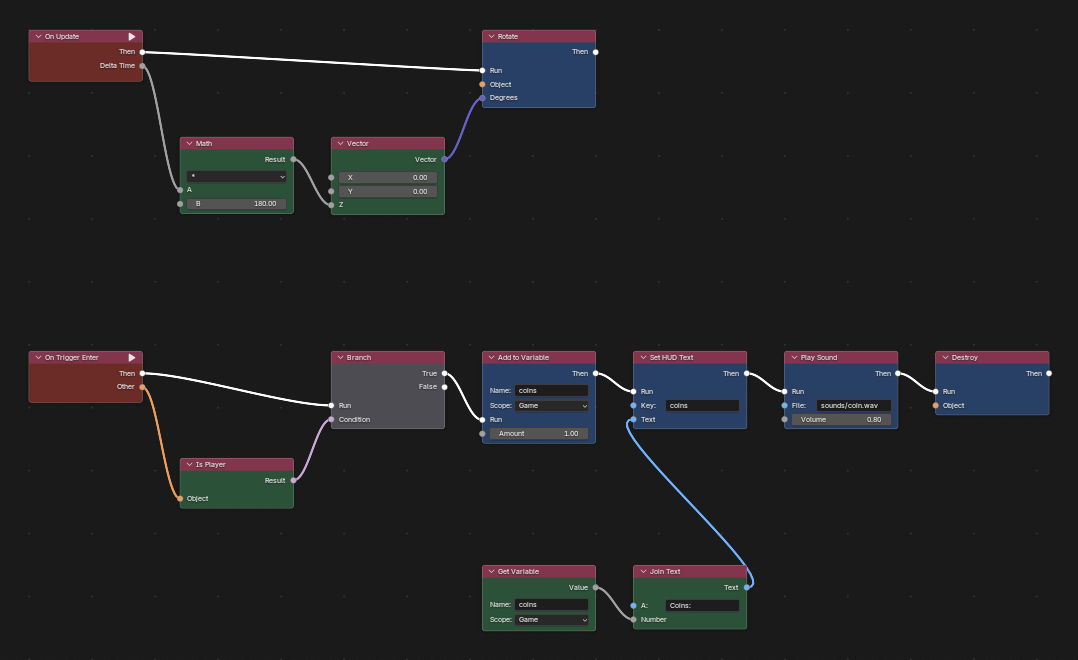
1. Start a graph
- Select an object, then go to BlendForge tab → Object Components → Script and click the new-file button next to Logic. For the whole level, use World → Level Logic.
- Open a node editor, for example by changing the Timeline at the bottom, and choose BlendForge Logic from its editor-type menu. The new graph opens with an On Start node already wired to a Print node.
- Press Shift+A to add nodes, drag from a socket to connect it, and press Play.
The node editor’s sidebar (N → BlendForge) says whether the graph compiles, and Show as Lua puts the code it becomes in a Text.
2. How graphs run
- Events (red) start a flow: On Start, On Update (every frame), On Trigger Enter/Exit, On Interact (the player pressed E; it sets the prompt), On Key Pressed, Every N Seconds and On Custom Event.
- Actions (blue) run one after another along the white flow sockets, from an action’s Then to the next one’s Run.
- Values (green) plug into the coloured sockets. Orange carries objects, grey numbers, purple vectors, pink true/false and blue text.
- Flow nodes (grey) branch and wait: Branch (if / else), Delay, Do Once and For Each Object.
The nodes
| Events | On Start, On Update (with Delta Time), On Trigger Enter / Exit (with Other), On Interact (with Player, and a Prompt), On Key Pressed, Every N Seconds, On Custom Event (with Value) |
| Flow | Branch, Delay, Do Once, For Each Object (every object whose name starts with…) |
| Actions | Print, Show Message, Set HUD Text, Move, Rotate, Set Position, Set Rotation, Set Visible, Look At, Push, Destroy, Spawn, Play Sound, Play Object’s Sound, Play Animation, Emit Particles, Walk To (AI agents), Send Event, Set Variable, Add to Variable, Load Level, Restart Level, Respawn Player, Set Checkpoint |
| Values | Self, Player, Find Object, Get Variable, Object Property (a custom property from Blender), Position, Distance, Number, Vector, Separate XYZ, Join Text, Math, Vector Math, Compare, And / Or / Not, Is Player, Key Down, Random, Time |
Values and variables
Set Variable, Add to Variable and Get Variable have a Scope. A Game variable is shared by every script and graph (it’s Lua’s game table) and carries over to the next level. An Object variable belongs to that one object; give a door its own open variable, for example. A number joined to text with Join Text is written without “.0”, so you get “Coins: 3”.
Custom events
Objects talk to each other with events. A lever’s Send Event named open, sent to the door (Find Object “Door”), runs the door’s On Custom Event named open. Lua can send the same event with find("Door"):call("open").
Graphs and Lua together
- An object can have a Lua script and a graph. Both run, and the script’s callbacks go first.
- One graph can be shared by many objects, such as every coin in a level. Each object runs its own copy, with its own Object variables.
- A graph that can’t compile stops Play with the graph’s name and the problem. Blender draws a link that would make a loop in red; to repeat something, use Every N Seconds or a Delay.
- Outgrown a graph? Show as Lua gives you the code to carry on in a script.
The demo
In the Samples & docs download, samples\make_logic_demo.py builds a level made only of graphs: three spinning coins sharing one graph and counted on the HUD, a lever whose Send Event opens a sliding door, a ball dropper (F), and a level graph that notices when every coin is collected. Open samples\logic_demo.blend and pick each graph in the node editor’s browse menu.